Use Google AI Pro credit for a paid key
Connect the monthly $10 Google AI Pro credit to Google Cloud billing and use the paid Gemini API tier. In Nalmeok, it powers Batch processing.
Screenshots show the Korean interface. English button names are in parentheses.
-
Join the Google Developer Program
Open the Google Developer Program, choose Join the program, and sign in with the account that has Google AI Pro. Joining is free.
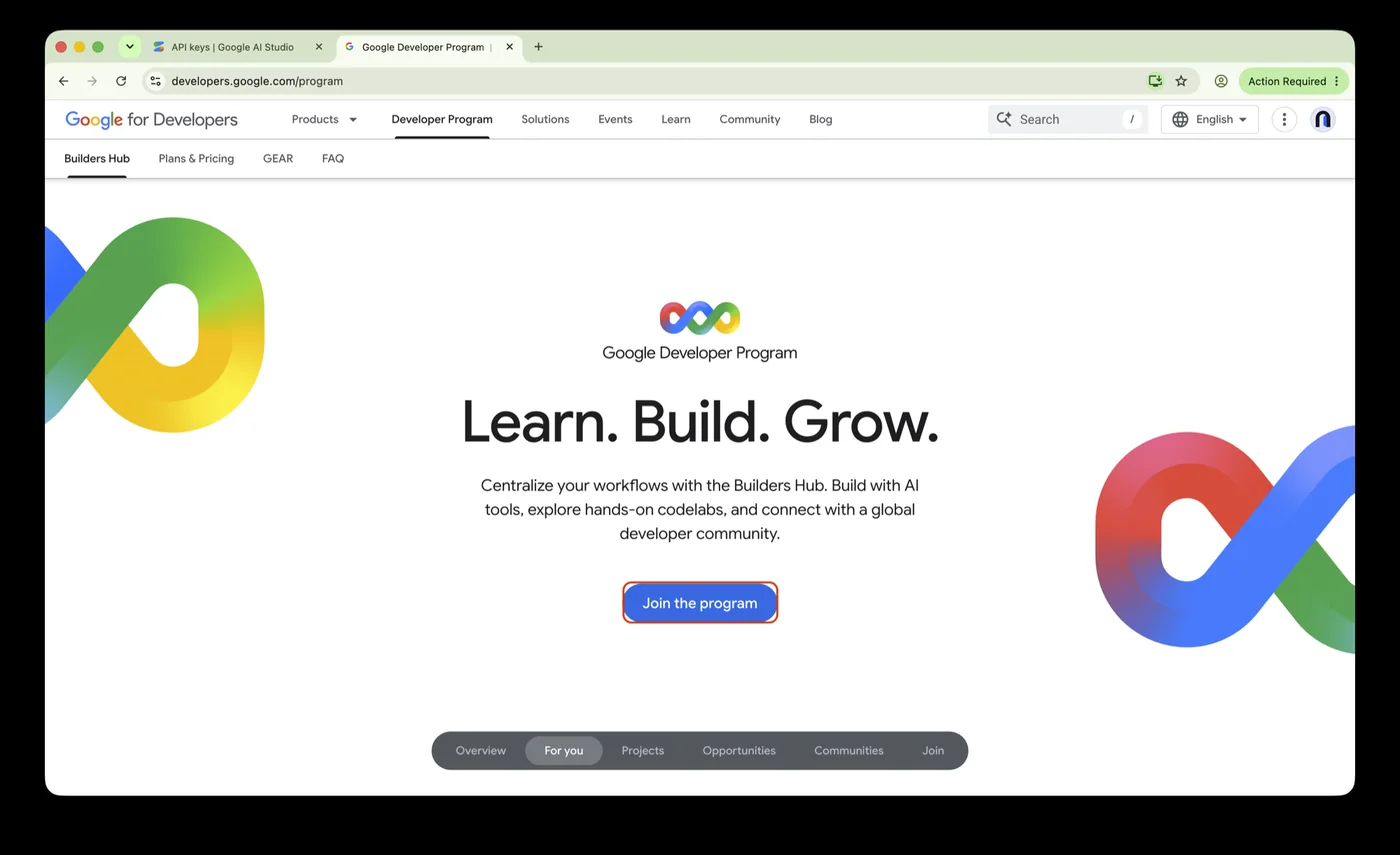
Photo 1 — Google Developer Program -
Create a developer profile
On the first visit, you get a profile setup screen. Choose Join the program, enter your name and profile details, and choose Create profile. Choose your profile visibility and email preferences.
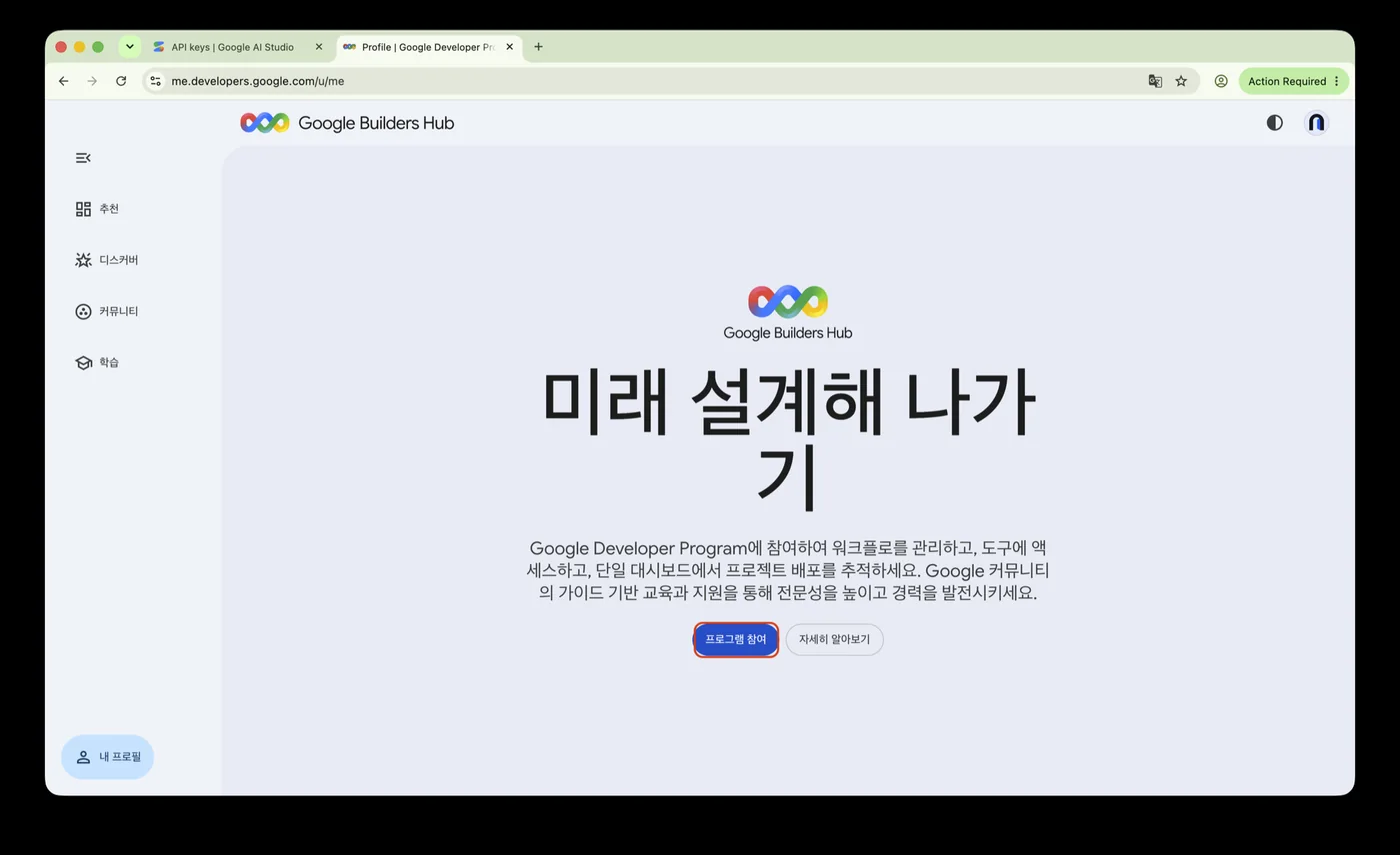
Photo 2 — Joining the program 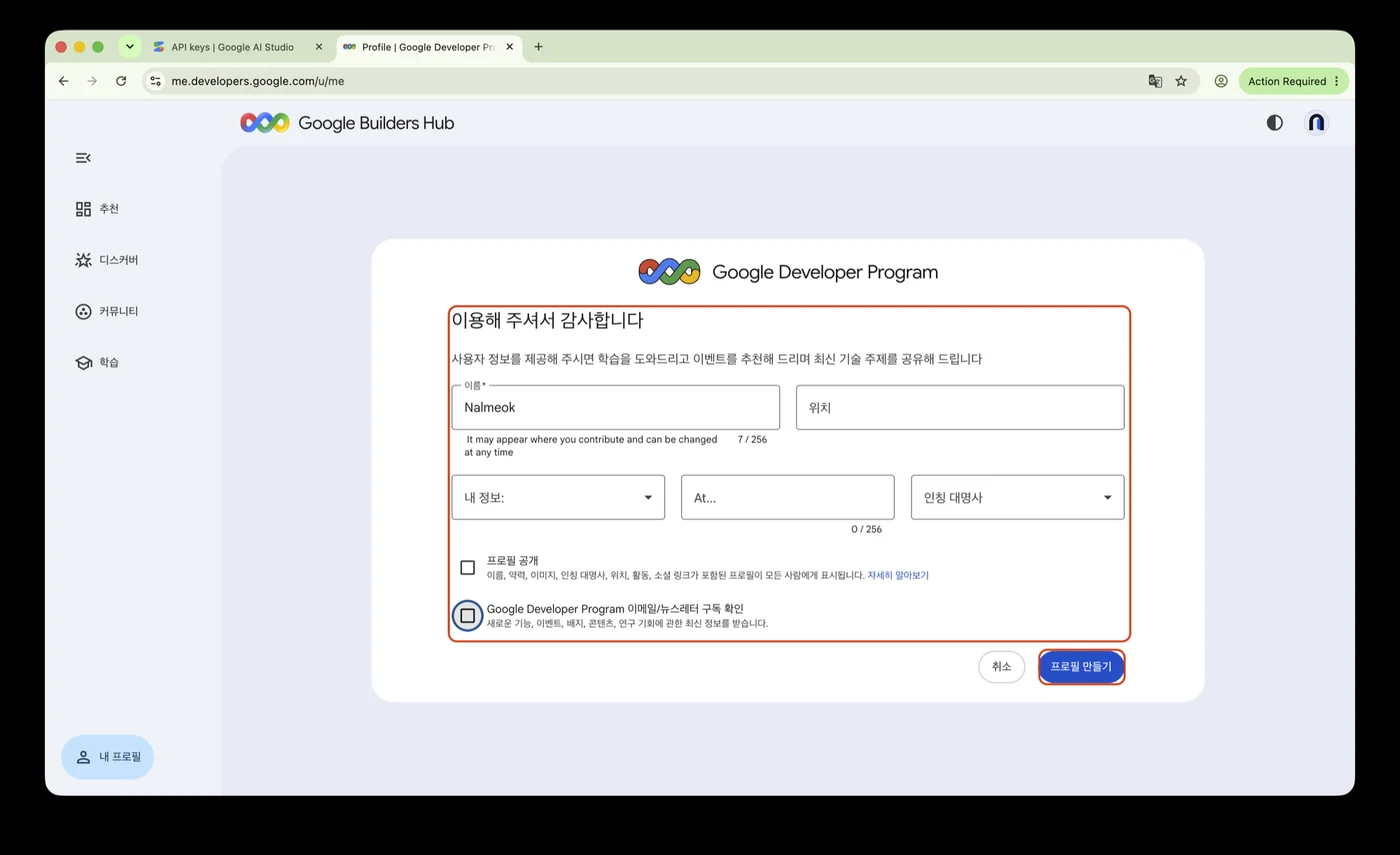
Photo 3 — Creating a developer profile 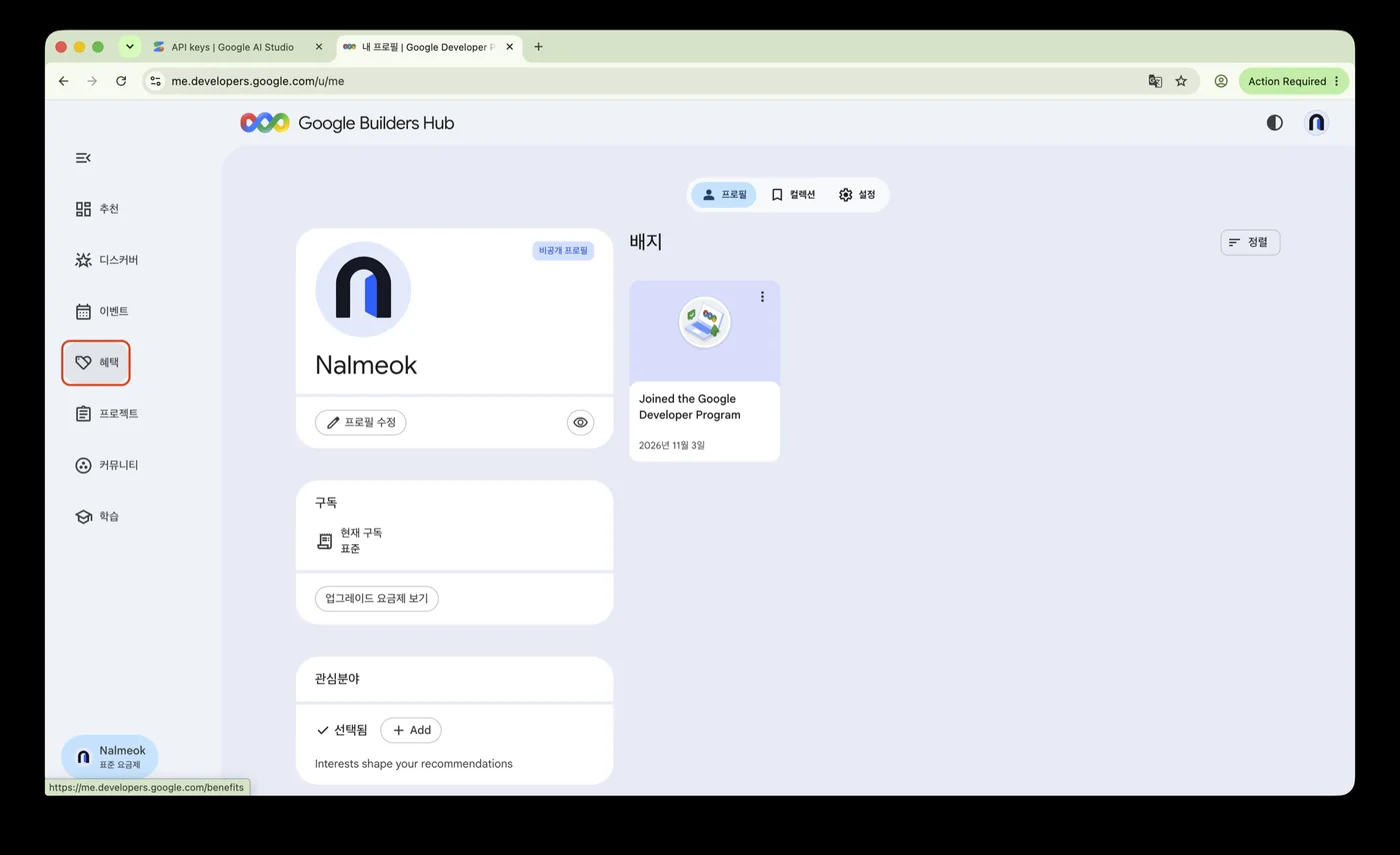
Photo 4 — Profile complete -
Check the monthly credit
In Google Builders Hub, open Benefits in the left menu. On the Premium tab you see the monthly generative AI and Cloud credit card. The credit is $10 a month; Korean accounts show it converted to won (for example, ₩13,433), along with the expiry date, linked billing account, and remaining balance.
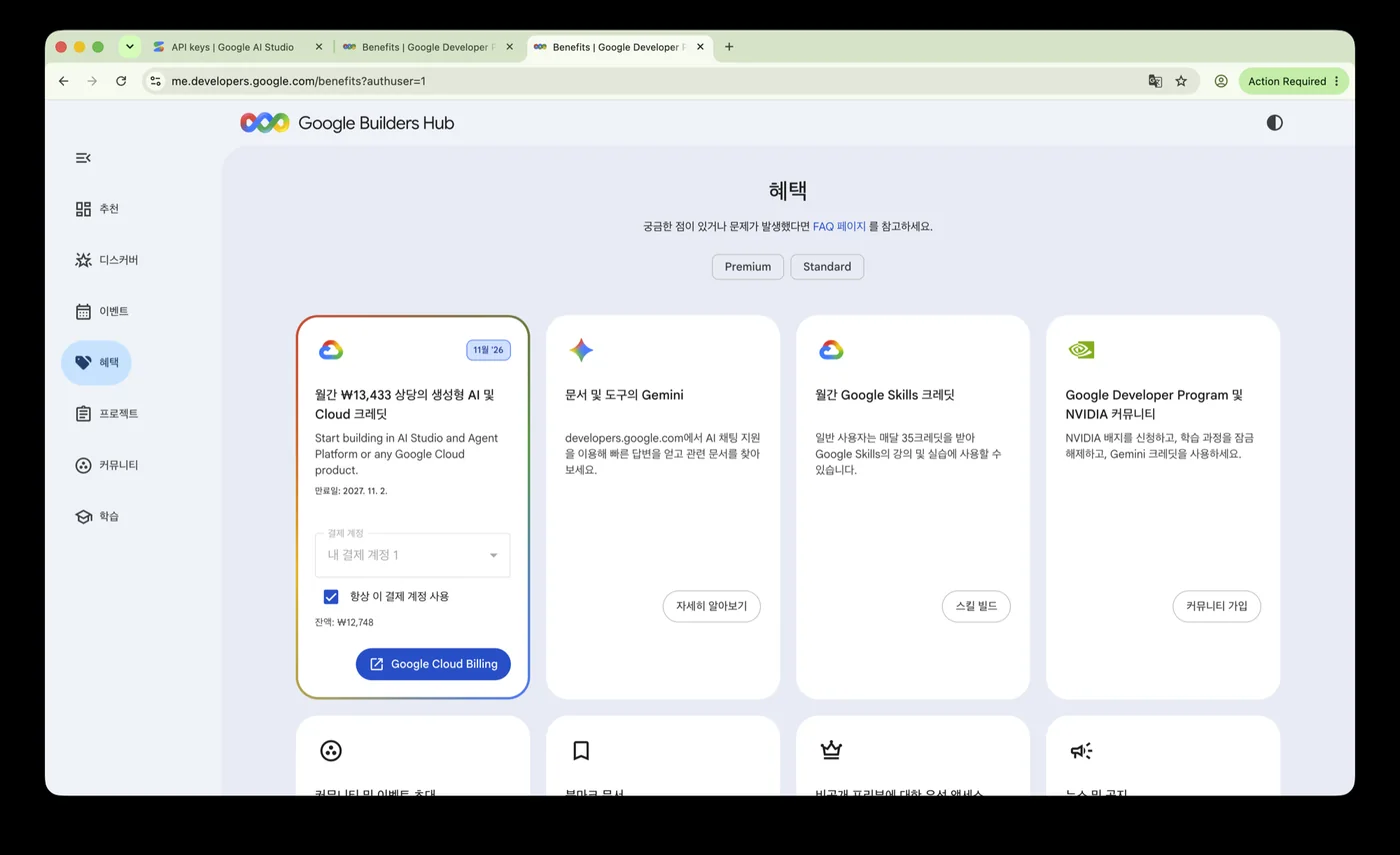
Photo 5 — Premium benefits and monthly credit -
Activate the Google Cloud credit
Choose a billing account on the card. If this is your first time, create a Google Cloud billing account or choose an existing one. Check Always use this billing account to reuse it. The credit is active when the card shows a balance and an expiry date.
The credit expires. Check the period shown on the benefit card. -
Set up paid billing for the Gemini API
Open API keys and choose Set up billing on the key row for the project you want to use. In Cloud Billing account settings, choose the account linked to the credit and choose Continue. If no account appears, choose Add a new billing account.
The first paid setup may require a payment method and a $5 minimum prepaid deposit. An active prepaid balance is applied after Google Cloud credits.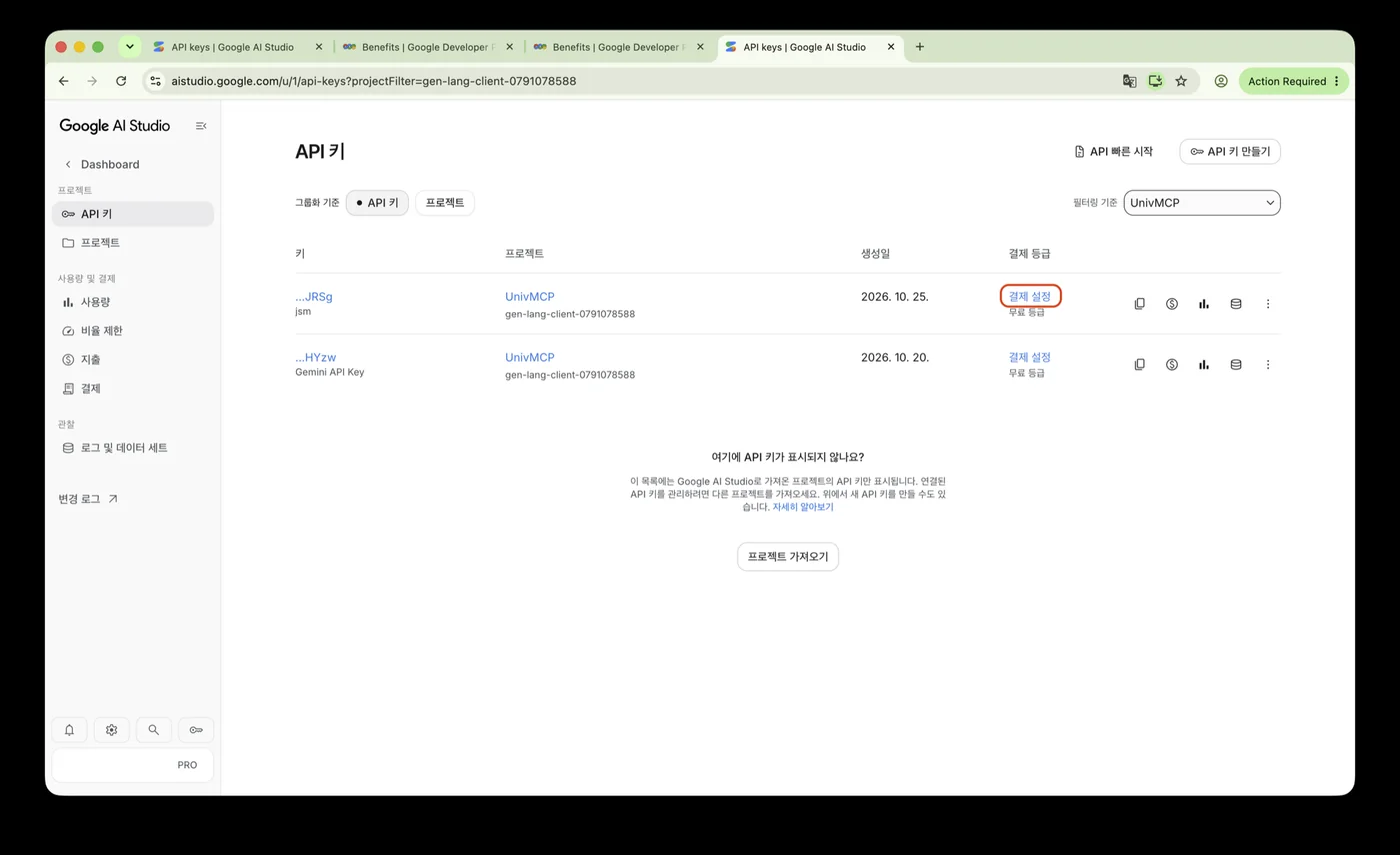
Photo 6 — Billing setup on the API key row 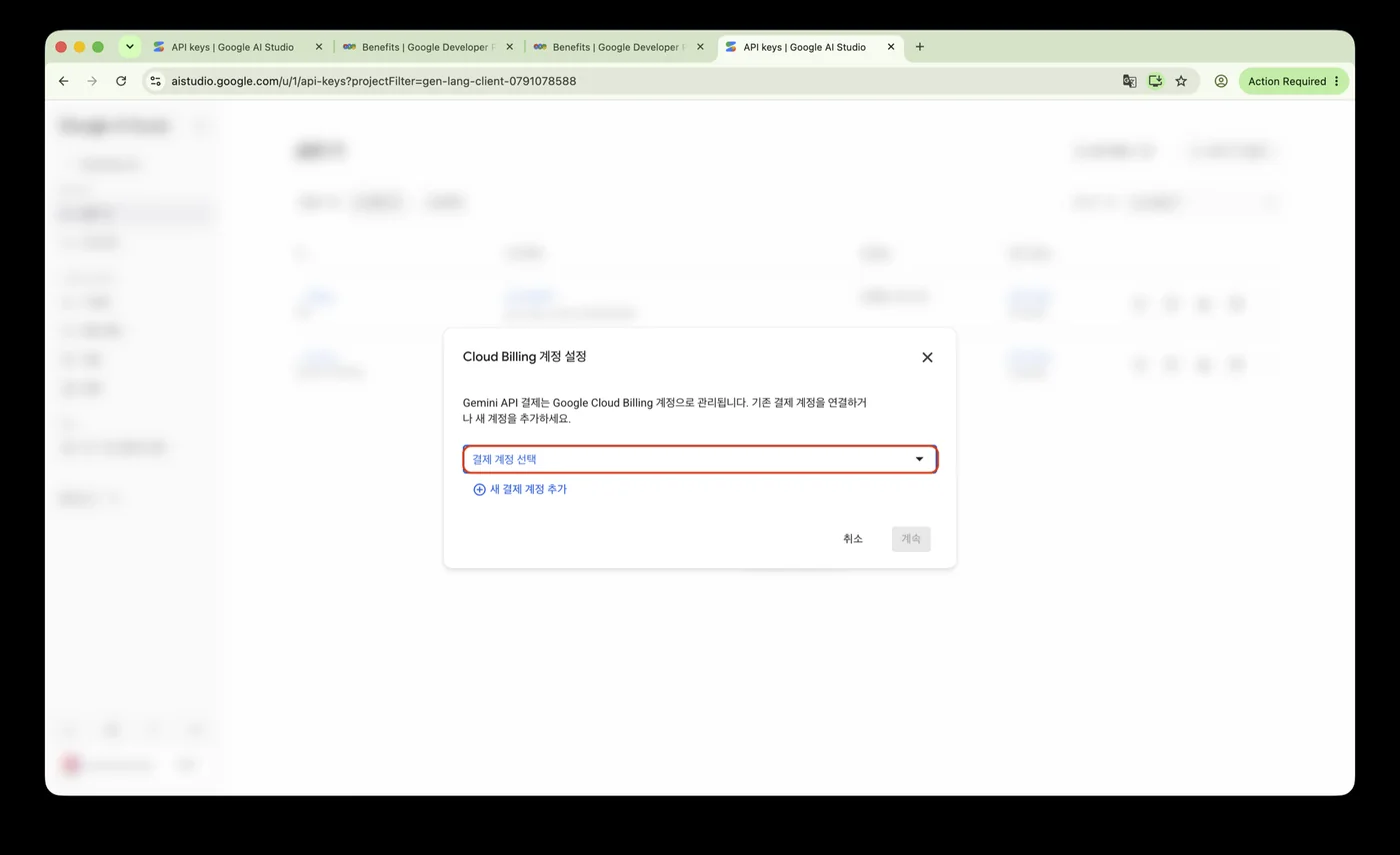
Photo 7 — Cloud Billing account settings 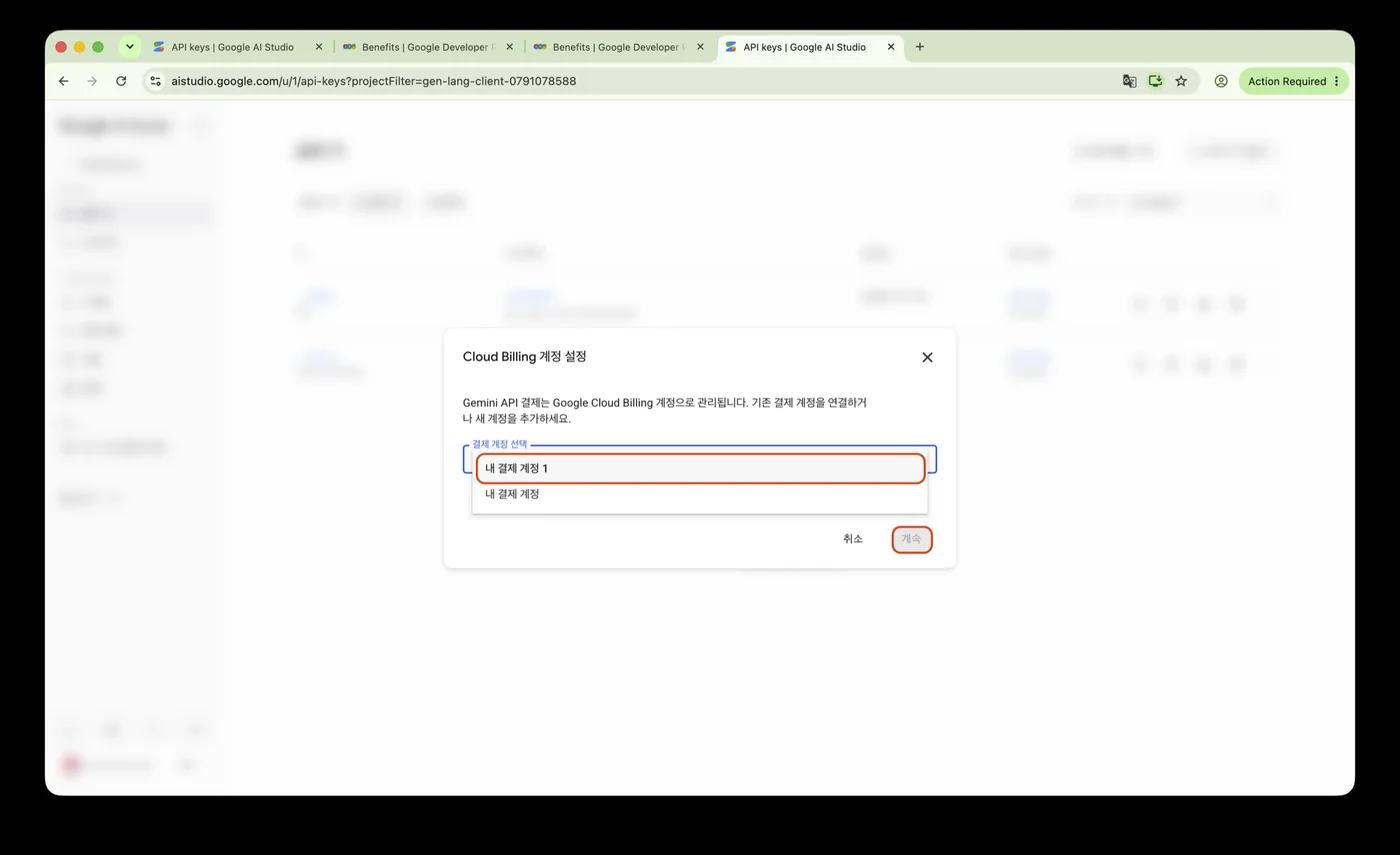
Photo 8 — Choosing the billing account -
Create a key and add it to Nalmeok
Choose Create API key, enter a name (for example,
Nalmeok), and select the project with paid billing. Choose Create key and copy it. In Nalmeok, open API keys (Korean: API 키), choose Paid (Korean: 유료), paste the key into Paste an API key (Korean: API 키 붙여넣기), and choose Save (Korean: 저장). Choose Done (Korean: 완료) when the key appears.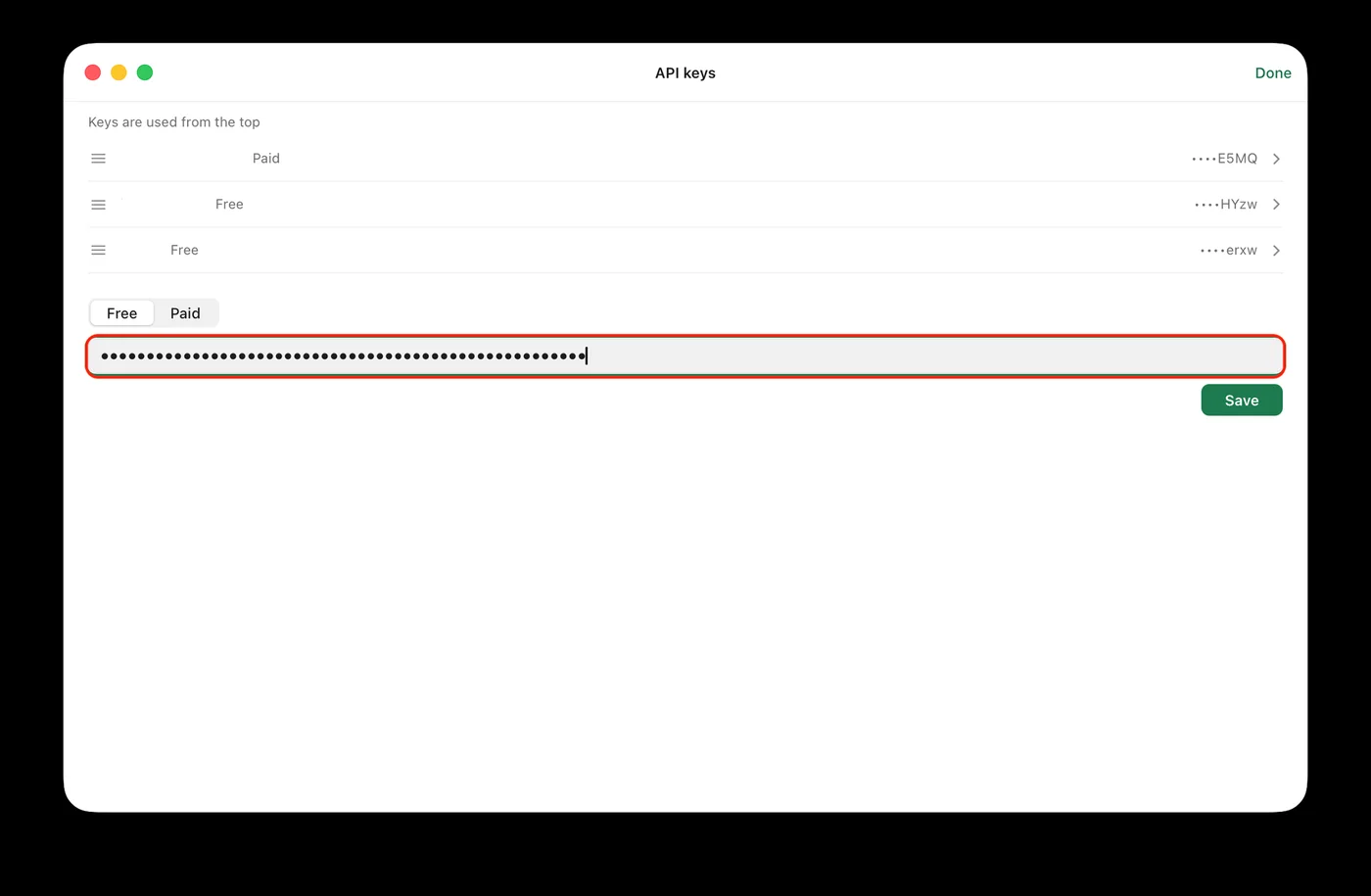
Photo 9 — Nalmeok API keys screen Paid keys use Batch processing. A one-hour recording costs about 5¢ and usually returns in 10–60 minutes. Closing the app does not stop the job; Google keeps processing it. For the free-key setup, see Get a free Gemini API key.
Questions
- Do I pay $10 separately each month?
- The $10 credit is included in the Google AI Pro subscription. The first paid Gemini API setup may require a separate prepaid deposit.
- What happens when the credit runs out?
- The normal rates for the linked billing account apply. Check your usage and spending limits.
- Can I use my existing free key?
- The free or paid tier belongs to the Google Cloud project linked to the key, not the key itself. Connect billing to the existing project and the key can use the paid tier. In Nalmeok, choose Paid and add it again.
- Are Google AI Pro and Gemini API the same?
- Google AI Pro is Google's AI subscription; Gemini API is the service apps use to call Gemini models. Pro includes a monthly Cloud credit that can be used for Gemini API.